



Listed below are the steps to enable debug logging information from within Prizm Viewer:
- Select Preferences.
- Select Viewer.
- Select the Error Log File check box.
- Restart the browser.
- Reproduce the issue.
- Open the Debug Log from the defined default directory.
The default location of the debug log file is:
The debug log can grow without bounds and should be checked and disposed of as needed.

-
To open the log file, double-click on the file Prizm Viewer Log File.txt.
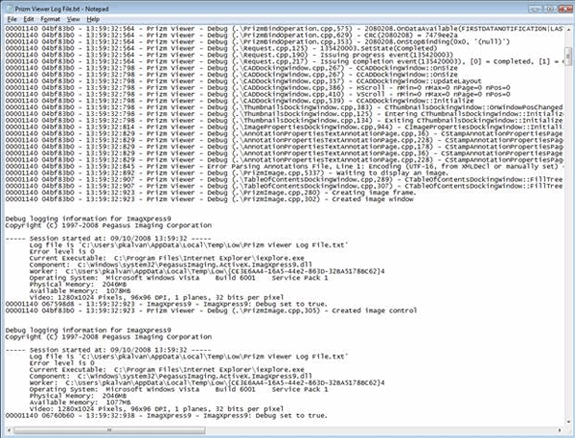
Below is an example of what this debug log may look like. Use this log to determine and solve issues that each component may have during processing.
For information on specific component errors and troubleshooting, see the help files on the Accusoft website under Support/Manuals for each component listed below:
-
ImagXpress®
-
NotateXpress™
-
PDF Xpress™
-
ThumbnailXpress™