Barcode Xpress for Java v13.5 - Updated
Try the Sample Application
Hello Barcode Xpress for Java is a simple barcode reading sample hosted on GitHub to demonstrate how easy it is to read barcodes from your images with Barcode Xpress:
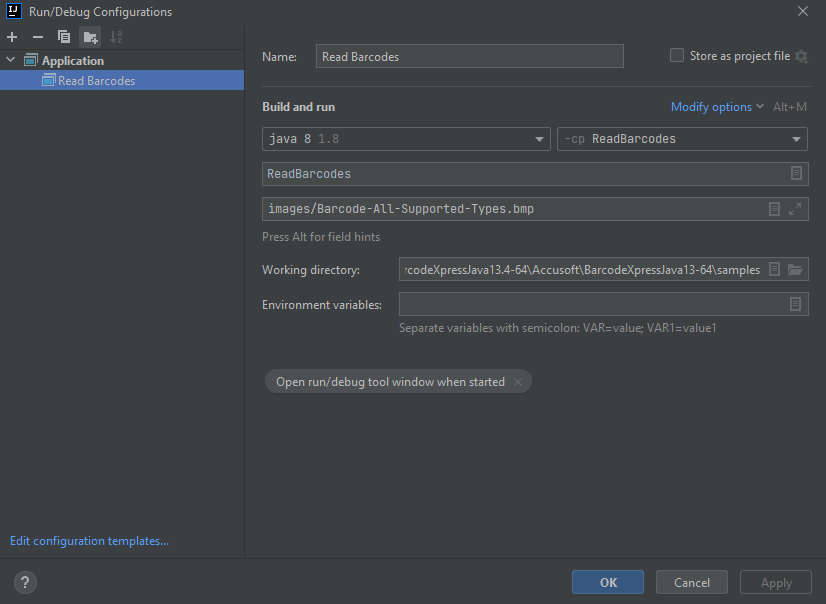
The code sample is located in the "samples" sub-folder located at Accusoft/BarcodeXpressJava13-64/samples. It also contains the ReadMe.txt file with detailed instructions on how to build and run the samples.
Please refer to the How to Build and Run Samples section below for information on building the sample.
Barcode Xpress for Java has the following sample to get you started:
ReadBarcodes
Recognizes the text in an image(s) and prints results to the console.
The commands to compile and run the sample will essentially be the same on both Windows and Linux. The only difference is the punctuation mark used to separate entities on the classpath. Java uses ";" on Windows and ":" on Linux.
Navigate to the sample folder. For example, for the ReadBarcodes sample use the following command:
cd Accusoft/BarcodeXpressJava13-64/samples/ReadBarcodes
In the sample folder, run the following command:
mvn clean package dependency:copy-dependencies
After the command has successfully completed, the "target" folder will be created in the sample folder.
Run the sample with the following command:
Linux
mvn exec:java -Dexec.args="path/to/your/image.bmp"
or
java -cp "target/ReadBarcodes-1.0.jar:target/dependency/barcodexpressjava-13.5.jar" ReadBarcodes path/to/your/image.bmp
Windows
mvn exec:java -Dexec.args="path/to/your/image.bmp"
or
java -cp "target/ReadBarcodes-1.0.jar;target/dependency/barcodexpressjava-13.5.jar" ReadBarcodes path/to/your/image.bmp
Navigate to the samples folder.
For example, for the ReadBarcodes sample use the following command:
cd Accusoft/BarcodeXpressJava13-64/samples/ReadBarcodes
In the sample folder, compile the sample using the following command:
Linux
javac -cp ".:src/main/java:../../bin/barcodexpressjava-13.5.jar" src/main/java/ReadBarcodes.java
Windows
javac -cp ".;src/main/java;../../bin/barcodexpressjava-13.5.jar" src/main/java/ReadBarcodes.java
Run the sample using the following command:
Linux
java -cp ".:src/main/java:../../bin/barcodexpressjava-13.5.jar" ReadBarcodes path/to/your/image.bmp
Windows
java -cp ".;src/main/java;../../bin/barcodexpressjava-13.5.jar" ReadBarcodes path/to/your/image.bmp
The ReadBarcodes sample allows you to specify the type of barcode to search. So, if you want to look for only 1D barcodes, only 2D barcodes, or all types of barcodes, use the type option to specify it.
ReadBarcodes [options] <image1> [<image2> ... <imageN>]
-t, --type <type>

(optional = true, default = '1d') Barcode types to scan
<type>: '1d' - all 1D | '2d' - all 2D | 'all' - all 1D + 2D | you can also specify several barcode types at once

-h, --help

(optional = true) Print this help message
ReadBarcodes ../images/Barcode-All-Supported-Types.bmp ../images/Barcode-Multiple-Common.bmp

ReadBarcodes -t 1d -t Planet --type ADD2 ../images/Barcode-All-Supported-Types.bmp

ReadBarcodes -t 2d ../images/Barcode-All-Supported-Types.bmp

ReadBarcodes --type all ../images/Barcode-*